
Key takeaways
- Microsoft secures the platform; you protect the data. Microsoft keeps Microsoft 365 running, but it does not back up the data inside it. Anything lost through the front door is yours to recover.
- Accidental deletion is the #1 cause of data loss, not ransomware, and accidents happen both on the user and administrator level.
- Entra ID is the gap many organizations miss. Without restoring identities first, recovered mailboxes, SharePoint, and OneDrive have no users to connect to the data.
- Recovery speed is the metric that matters under pressure. The backup method your solution uses can be the difference between hours and weeks of downtime.
- A real backup is logically separated from production. If production credentials give you the same access to your backup, it’s a second target, not a second copy.
Veeam Data Cloud backup offers an independent, customer-controlled copy of your Microsoft 365 data, across Exchange, SharePoint, OneDrive, Teams, and Entra ID, that you can restore from when other protections fall short. And native recycling bins fall short far more often than most admins realize.
In my work with Microsoft 365 admins, the same gaps surface repeatedly. And that usually happens at the worst possible moment: During an actual recovery.
In this article, I’ll walk through the protection gaps I see organizations stumble into most often, why native tools leave you more exposed than you’d expect, and what a solid Microsoft 365 backup strategy looks like in practice.
The shared responsibility misconception
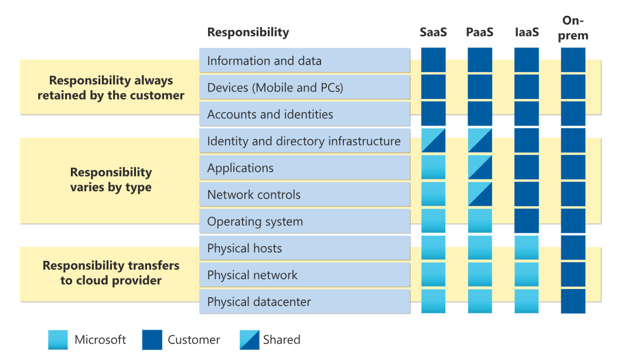
The most persistent misconception in any cloud is that the provider automatically backs up your data. They don’t. Under the shared responsibility model, Microsoft runs the Microsoft 365 application and infrastructure and keeps it available. The data living inside that environment is yours to protect.
Anything that comes through the front door, such as phishing attacks, a rogue enterprise application, and compromised credentials, Microsoft considers your responsibility. If someone gains access and deletes or alters your environment through those channels, you absorb the damages, not Microsoft. This could be anything from well-meaning admins and users to malicious actors.
The simplest way I explain it: Microsoft secures the building. But if someone walks in with a stolen key and trashes the office, that’s your loss and I hope you have good insurance.
When data loss happens, it happens fast
The most common way organizations lose Microsoft 365 data is accidental deletion: Someone removes the wrong file, a retention policy gets misconfigured, or a user makes a change they can’t undo. Removing data is so easy, which is why accidental deletion consistently tops the list, and nearly every organization has lived through some version of it.
Here’s how fast it can cascade. I’ve seen an organization wipe out its entire Teams chat history, everything older than five days, from a single chat-retention policy change. One configuration update, approved by the organization, and the whole company’s conversation history was gone. It wasn’t an attack; it was a policy adjustment that cascaded. And recovery wasn’t possible because of how Teams stores data: Conversations are interconnected data points spread across multiple storage layers, making it more complex than just restoring files.
That kind of disruption leads to sales conversations disappearing, transaction records becoming inaccessible, and project progress being wiped out. When communication and collaboration infrastructure breaks, the business grinds. Then it can become far worse when regulatory penalties come into play. This is all while your reputation is taking a hit: Explaining to customers you have no record of their conversation, and absorbing brand damage that outlasts the technical recovery.
The soft-deletion trap
Microsoft 365 does offer a safety net of sorts: Soft deletion. When data is deleted, it enters a soft-deleted state in a recycling bin for a limited window, in many cases up to around 90 days, though it varies by workload. I compare soft delete to using the reycling bin on your desktop as your backup.
That sounds reassuring until you look at how it works. Soft deletion often uses the same access controls as your primary data. One set of administrative credentials can delete or modify both. So, if an attacker compromises an admin account or an employee with elevated privileges decides to act, they can wipe out the primary data and the soft-deleted copies in a single pass. That leaves you with one avenue of deletion for your entire organization.
Beyond the security problem, the soft-deleted state isn’t archived with rich metadata, so there’s no easy way to run quick searches during a time-sensitive recovery. And for regulated industries, a roughly 90-day ceiling isn’t close to the retention you’re required to keep.
This is where you need a logical separation between production and backup. The backup credentials, the storage location, and the access controls should all be independent of your production tenant. This ensures that your second copy does not become a target.
The authentication gap nobody plans for
The gap that catches organizations during full recovery exercises is remarkably common: Everyone backs up their Exchange mailboxes, SharePoint sites, and OneDrive accounts. Entra ID can take a back seat in these conversations and be missed.
Entra ID may not hold your business data, but it is your authentication layer: User accounts, conditional access policies, group memberships, permission structures, and much more. If your Entra users are not available when you need to restore mailboxes, personal SharePoint sites, and OneDrive data, your backed-up data has nowhere to go, and no one to access it.
This becomes really apparent when organizations run a full tabletop recovery, simulating a complete tenant rebuild from scratch.
Recovery speed is a business-survival factor
When you’re evaluating backup solutions, recovery speed is the metric that matters most under pressure, and the technology differences are dramatic. Most backup software only uses traditional export/import operations through the Microsoft Graph API. A smaller set of partners can use Microsoft 365 Backup Storage, which creates a parallel copy of your data alongside the Microsoft 365 platform for far faster large-scale recovery.
|
|
Traditional API (export/import) |
Microsoft 365 Backup Storage |
|
How it works |
Exports and imports data item by item through the Microsoft Graph API |
Creates a parallel copy of your data through the backup console |
|
Recovery speed |
Throughput measured in terabytes per day |
1-5 TB per hour, with no throttling |
|
Best for |
Individual mailbox restores and small-scale deletions |
Full-environment, enterprise-scale recovery |
|
Availability |
Broadly available |
Select Microsoft launch partners, including Veeam |
The practical effect: With Microsoft 365 Backup Storage, full-environment recoveries that once took weeks or months can finish in hours.
Plan for data growth before it surprises you
One thing that catches many organizations: The sheer volume of data accumulating in Microsoft 365. SharePoint sites multiply as departments spin up their own shared SharePoint sites, and users generate redundant copies. Teams’ recordings and training videos pile up on stream. AI-generated output from Copilot and automated workflows is producing data faster than ever. Then you find out that the storage is not unlimited, and the notice of capacity being surpassed comes in the form of a bill.
Generally, running a cleanup process on data is the solution. But blindly deleting older data can be a dangerous game when trying to comply with regulations and user access to data. A secondary copy of data in lower-cost storage can help reduce the stress of Microsoft 365 overage charges while adding protection against leading causes of data loss.
Where to start
If you’re an admin realizing you have gaps, here’s the practical sequence I’d follow:
- Evaluate your soft-deletion exposure. Know exactly who holds credentials that could wipe both primary data and soft-deleted copies. If it’s the same people, you have a single point of failure.
- Compare retention requirements to native limits. If you’re in a regulated industry, a roughly 90-day window isn’t sufficient.
- Run a real recovery test. Not a single-mailbox restore but a full exercise that rebuilds Entra ID, restores users, then recovers data to those users. Document every gap.
- Understand real recovery speed. In a disaster, a theoretical RTO on a slide is irrelevant. What matters is terabytes per hour under real-world conditions.
How Veeam helps
Veeam Data Cloud for Microsoft 365 is built around these realities. It backs up and recovers your full environment, Exchange, SharePoint, OneDrive, Teams, and Entra ID, and stores that data in a dedicated location separate from your production tenant, giving you the logical separation that turns a backup into a true second copy rather than a second target.
As Microsoft’s only platinum partners for Microsoft 365 Backup Storage, Veeam can recover large data sets at 1-5 TB per hour with no throttling, so full-environment recoveries that once took weeks or months can finish in hours. And with predictable pricing and inclusive storage, your costs don’t spiral as your Microsoft 365 data grows.
If you want to see how it works, visit the Microsoft 365 backup solution page or request a demo.
FAQs
No. Under the shared responsibility model, Microsoft keeps the platform available and secures the infrastructure, but protecting the data inside Microsoft 365 is the customer’s responsibility. If data is deleted or altered through compromised credentials, a rogue app, or human error, Microsoft will not recover it for you.
Accidental deletion. A wrong file removed, a misconfigured retention policy, or an unrecoverable user change causes data loss far more often than ransomware, and nearly every organization experiences some version of it.
Microsoft 365 holds deleted items in a soft-deleted state for a limited window, in many cases up to around 90 days, though it varies by workload. For regulated industries, that ceiling is usually well short of required retention.
Soft-deleted data uses the same access controls as your primary data, so one set of compromised admin credentials can wipe both at once. It also lacks the metadata needed for fast, searchable recovery. A real backup is logically separated from production, with independent credentials and storage.
Yes. Entra ID holds user accounts, conditional access policies, and group memberships. Without restoring identities first, recovered mailboxes, SharePoint, and OneDrive have nowhere to land, which is a gap that typically only surfaces during a full tenant-rebuild test.
It depends on the technology. Traditional export/import through the Microsoft Graph API is suited to individual or small-scale restores, generally less than a terabyte in a day. Microsoft 365 Backup Storage, available to select partners including Veeam, supports large-scale recovery at 1-5 TB per hour with no throttling.
The post Microsoft 365 Backup: Why Your Data Isn’t as Protected as You Think appeared first on Veeam Software Official Blog.
from Veeam Software Official Blog https://ift.tt/6CQ8qJy
Share this content: